
Leave VMware. Keep every VM.
Move Windows and Linux VMs from vCenter and ESXi into FusioNative with FusioNative Migration, a separate product, then run them next to Kubernetes, GPUs and AI on hardware you own.
- vSphere 7 and 8
- Windows and Linux
- Warm migration
- Rollback built in
Short answer
FusioNative runs your virtual machines on KubeVirt. FusioNative Migration, a separate product, connects to vCenter or ESXi, checks every VM, copies it cold or warm, converts Windows and Linux guests, and switches over with rollback. The VMs then run on KubeVirt with live migration, HA, snapshots, GPUs and VLAN networking.
- steps from vCenter to a running VM
- 5
- steps from vCenter to a running VM
- guest families: Windows and Linux
- 2
- guest families: Windows and Linux
- source VMs deleted by the toolkit
- 0
- source VMs deleted by the toolkit
- console for VMs and Kubernetes
- 1
- console for VMs and Kubernetes
The landing zone
Every VMware building block has a place to land.
What you run in vSphere today, and where it lives in FusioNative after the move.
FusioNative console
One console for VMs, Kubernetes, GPUs, storage and networking, with tenants and roles
KubeVirt on Kubernetes nodes
VMs and containers share the same servers and the same operations
Live migration
Move a running VM to another node, with a capacity check before it moves
Node drain and evacuation
Empty a node for patching without stopping the VMs
VM high availability
A watchdog restarts failed VMs, and disruption budgets keep them up during upgrades
Snapshots, restore and clone
Snapshot, restore, or clone a VM with a new identity
Instance types, templates and ISO library
Standard VM sizes, golden images and install media in one catalog
Ceph block storage
Replicated block storage; shared disks let VMs live-migrate
VM networks, bridges and VLANs
Attach VMs to your VLANs, with fixed MAC addresses and DHCP reservations
Cilium VM network policies
Allow or deny traffic between VMs and workloads by policy
GPU passthrough, time-slicing, vGPU and MIG
Give a VM a whole GPU, or a vGPU or MIG slice the cluster already provides
Tenant and project quotas
CPU, memory, storage and VM limits per tenant and project
VM metrics and Observe
Guest and host metrics next to the rest of the estate
Comparing the platforms side by side? FusioNative vs VMware
FusioNative Migration
Five steps from vCenter to a running VM.
The toolkit runs next to FusioNative, reads your VMware estate, and moves each VM with checks at every step.
- 1
Connect
Register one or more vCenters or standalone ESXi hosts (vSphere 7 and 8).
- 2
Discover
Read the VM inventory and keep it in sync on a schedule.
- 3
Assess
Mark every VM ready, warning, blocked or unsupported, with the reason and the fix.
- 4
Migrate
Copy cold, or warm: changed blocks sync while the VM keeps running.
- 5
Test and switch over
Boot a test copy first, then switch over. If anything fails, the VMware VM powers back on.
Several sources at once
Connect several vCenters and standalone ESXi hosts, each with its own credentials.
Readiness before any copy
Networks, storage class, target size, VMware Tools and changed block tracking are checked per VM.
Warm migration
Changed block tracking copies only what changed since the last sync, so the final switch is short.
Network and storage mapping
Port groups map to FusioNative VM networks and datastores to storage classes, chosen per VM.
MAC addresses kept
Each network card keeps its MAC address, so licences and reservations tied to it keep working.
Rollback built in
On failure the new copy is removed and the source VM is powered back on. The source is never deleted.
Progress you can watch
Byte-level progress for every disk, with logs per step.
Roles per tenant
Platform admin, tenant admin, operator and viewer roles decide who can move what.
Warm migration
Copy while it runs. Stop it only at the end.
The first pass copies the whole disk while the VM keeps serving users. Each later pass copies only the blocks that changed. When you are ready, the VM shuts down, the last changes move, and it boots on FusioNative: downtime is the final sync plus a reboot.
Prefer a simple copy? Cold migration moves the VM while it is off.
Full copy
Whole disks copied while the VM runs
Sync 1
Only blocks changed since the full copy
Sync 2
Only blocks changed since sync 1
Final sync
VM shut down, last changes copied, then boot on FusioNative
Changed block tracking copies only what changed since the last sync, so each pass is smaller. Bar lengths are illustrative; real sizes depend on how fast each VM writes.
Windows and Linux
Both guest families, converted on the way in.
Drivers, disks and network settings are handled during the move, so VMs boot on FusioNative ready to work.
Windows guests
- VirtIO drivers are added during conversion, with disk and registry repair
- If a conversion cannot add them, the VM boots on standard drivers and switches to VirtIO automatically
- Keeps its IP through a DHCP reservation on the matching VLAN
- New Windows VMs: unattended installs, VirtIO drivers, guest tools, vTPM and Secure Boot
Linux guests
- Converted in place, with VirtIO drivers for disk and network
- Network card names are kept, so the existing network settings stay valid
- Keeps its IP when the VM lands on the matching VLAN network
- New Linux VMs: cloud-init, SSH keys, static MAC and IP at create
After the move
Everything your VMs had, in one console.
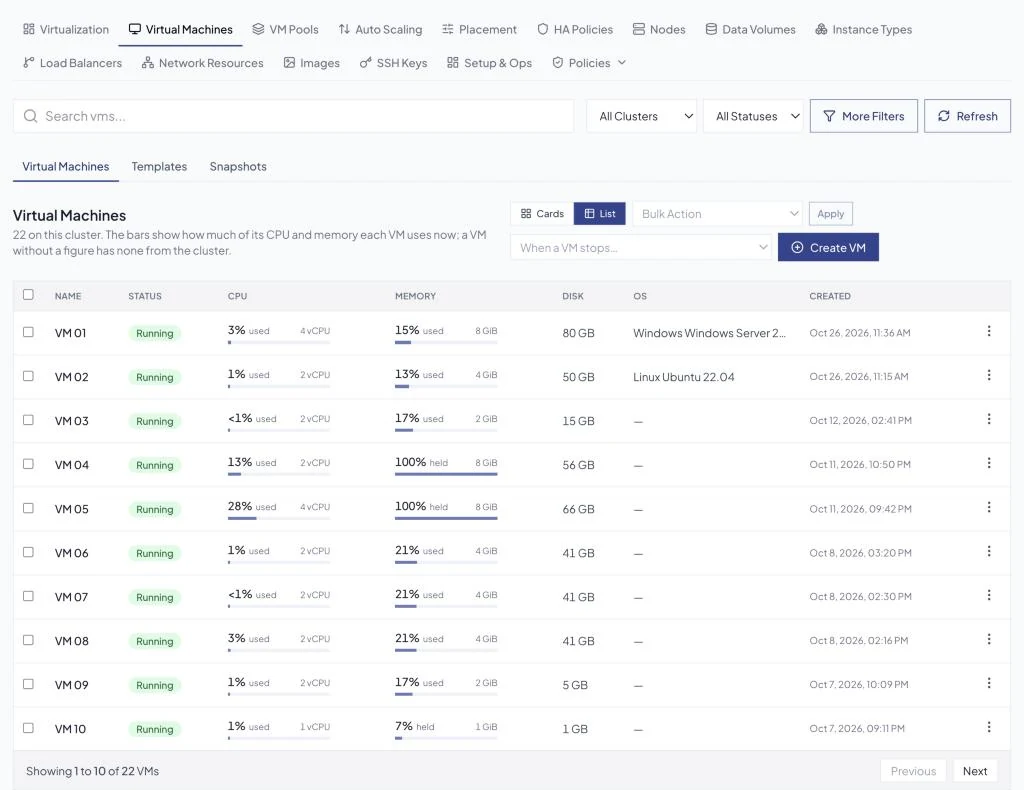
Real screens from the portal: the virtualization dashboard, the VM list and a VM's details. Names and addresses are hidden.
Full VM lifecycle
Create, start, stop, restart, pause and run strategies, from the console or the API.
Consoles
VNC and serial consoles in the browser.
Live migration and evacuation
Move running VMs between nodes and empty a node for maintenance.
High availability
Watchdog restarts and disruption budgets keep VMs running.
Snapshots, restore and clone
Point-in-time snapshots, restore, and clones with a new identity.
Hot-add and resize
Add disks and network cards to a running VM; grow disks.
GPUs for VMs
Passthrough, plus time-sliced, vGPU and MIG devices already set up on the cluster, and hugepages.
Networks
VLAN bridges, VM networks, IP pools, DHCP reservations and Cilium VM policies.
Disk import
Upload or fetch ISO, IMG, QCOW2, RAW and VMDK images, or clone existing disks.
Security for new VMs
Persistent vTPM and Secure Boot.
VM pools and load balancers
Pools of identical VMs with autoscaling, behind a load balancer.
Quotas and metrics
VM quotas per tenant and project, with guest and host metrics.
Your migration plan
From first scan to the last host switched off.
The order most estates follow. Each phase has a clear exit before the next one starts.
01Assess
Connect vCenter and read the readiness report for every VM.
02Prepare
Create the VM networks, storage classes and quotas the report asks for.
03Pilot
Move a few VMs, Windows and Linux, and test them with their owners.
04Move in groups
Plan groups by application; warm sync keeps each switch-over short.
05Retire VMware
Switch off hosts as they empty, and keep the source VMs until you sign off.
Phases overlap: groups keep moving while later ones are prepared. Lengths are illustrative.
Readiness checklist
- Inventory of VMs, owners and applications
- VLANs that must exist on FusioNative, and which VMs must keep their IP
- Storage needed per datastore, with growth
- Windows VMs and their licences
- UEFI, Secure Boot, vTPM and encrypted VMs listed
- VMs with raw device mappings or shared disks listed
- Changed block tracking enabled for VMs that move warm
- A maintenance window per application group
Plan for these
What we tell you before you start.
The cases that need a decision ahead of time. The assessment flags each one per VM.
IP addresses
A VM keeps its IP when its VLAN exists as a VM network on FusioNative, or through a DHCP reservation. Without one, it gets a new address.
Secure Boot and vTPM
Migrated UEFI VMs arrive with Secure Boot off and without a vTPM. VMs that depend on them, or are encrypted, need a plan before they move.
Templates
VMware templates are not migrated. Rebuild them as FusioNative templates or instance types.
Raw device mappings and shared disks
These need a plan per VM; the toolkit does not move them as they are.
vSphere 9
Not supported yet; vSphere 7 and 8 work today.
Groups
You plan the groups; the toolkit moves and tracks each VM on its own.
Questions
VMware migration, answered.
Can FusioNative replace VMware vCenter and ESXi?
Yes, for running virtual machines. VMs run on KubeVirt inside FusioNative, with live migration, high availability, snapshots, clones, consoles, GPUs, VLAN networking and quotas, managed from one console together with Kubernetes, storage and AI workloads.
How do VMs move from VMware to FusioNative?
With FusioNative Migration, a separate product. It connects to vCenter or ESXi, checks every VM for readiness, copies the disks cold or warm with changed block tracking, converts the guest, boots a test copy and then switches over.
Are Windows VMs supported?
Yes. During conversion the toolkit adds VirtIO drivers and repairs the disk and registry. If drivers cannot be added, the VM boots on standard drivers and switches to VirtIO automatically.
How much downtime does a migration need?
With a warm migration the disks are copied while the VM runs and only the changes since the last sync move at the end, so downtime is the final sync plus a reboot. Cold migrations copy while the VM is off.
Do VMs keep their IP and MAC addresses?
MAC addresses are kept. IP addresses are kept when the VM lands on the matching VLAN network on FusioNative, or through a DHCP reservation; otherwise the VM gets a new address.
Can a migration be rolled back?
Yes. If a migration fails, the new copy is removed and the source VM in VMware is powered back on. The toolkit never deletes the source VM.
Your next move
Find out how your VMware estate would move.
We read your vCenter inventory with you and return a readiness report for every VM, with a plan for the rest.